

 By
By In 2026, AI is no longer a novelty—it’s a core part of the creative toolkit. Adobe Firefly has evolved from a simple image generator into an all-in-one AI creative studio. Whether you’re looking to design marketing assets, generate 4K cinematic video, or edit photos with a single command, this guide will show you how to master Firefly like a pro.
1. Is Adobe Firefly Free or Paid?
One of the most common questions is: “Is it actually free?”
- The Free Tier: Yes, you can use Firefly for free. Adobe provides a set amount of monthly Generative Credits.
- The Paid Tier: Upgrading to Firefly Pro or a Creative Cloud plan gives you significantly more credits, removes watermarks, and unlocks premium features like high-resolution 4MP downloads and the new Firefly Video Model.
- 2026 Update: Paid subscribers now enjoy unlimited generations on standard image models, allowing for endless experimentation without credit anxiety.
2. How to Get Started (Account & Setup)
Getting started is simple:
- Go to firefly.adobe.com.
- Sign in with your Adobe ID (or create one using Google/Apple).
- Check Your Version: Ensure you are using the latest Image Model 5, which offers superior photorealism and better handling of text within images.
3. The Grand Tour: Navigating the Dashboard
When you log in, you’ll see several modules. Don’t be overwhelmed!
- Text to Image: Your main hub for creating art from scratch.
- Generative Fill: For adding or removing objects in existing photos.
- Text to Video (New for 2026): Generate 5-second cinematic clips from a text prompt.
- Firefly Boards: A collaborative space to moodboard and remix styles with your team.
4. How to Create Your First Image: Step-by-Step
Generating an image is easy, but generating a great image requires strategy.
Step 1: Give the Command (The Prompt)
Type your prompt in the box at the bottom.
Pro Tip: For 2026, be specific about lighting and camera angles. Instead of “a forest,” try “Aerial drone shot of a misty pine forest at sunrise, cinematic lighting, 8k resolution.”
Step 2: Adjust Proportions & Type
On the right sidebar, select your Aspect Ratio (1:1 for Instagram, 9:16 for TikTok/Pinterest, or 16:9 for YouTube). Choose your Content Type:
- Photo: For realistic, lifelike results.
- Art: For illustrations, oil paintings, or digital art.
Step 3: Match Structure & Style
Use the Reference Image tool to upload a photo. Firefly will match the composition or style of your upload to ensure brand consistency.
Step 4: Refine and Save
Click Generate. If you love a result, click the Download button. Your image will include Content Credentials, proving it was made ethically with AI.
5. Beyond Images: What Else Can Firefly Do?
Firefly isn’t just for pictures anymore.
- Generative Expand: Click and drag the corners of a photo to “outpaint” and create a wider scene.
- Text to Vector: Create fully editable SVG icons and logos for Illustrator.
- Partner Models: In 2026, you can now toggle between Firefly’s model and partner models like Google Nano Banana or OpenAI directly within the interface for different “artistic souls.”
Adobe Firefly vs. Alternatives
| Feature | Adobe Firefly | Midjourney | DALL-E 3 |
| Commercial Safety | High (Adobe Stock Trained) | Low/Gray Area | Medium |
| Integration | Photoshop/Illustrator | Discord Only | ChatGPT/Bing |
| Video Support | Yes (Native) | Third-party tools | No |
| Ease of Use | Best (UI-based) | Difficult (Commands) | Good (Chat) |
4 professional-grade prompt templates
1. The “Hero” Blog Header (Professional & Clean
Goal: High authority and trust. Perfect for the top of your blog.
Prompt: A high-end, minimalist workspace with a sleek laptop and a tablet showing a vibrant AI-generated design. Soft natural window light, morning mist outside, glassmorphism UI elements floating nearby, professional photography style, shallow depth of field, 8k resolution, airy and bright.

2. The Viral Pinterest “How-To” Pin (Creative & Bold)
Goal: Stop the scroll with “Glassmorphism” and “Nostalgia” trends (2026’s top trends).
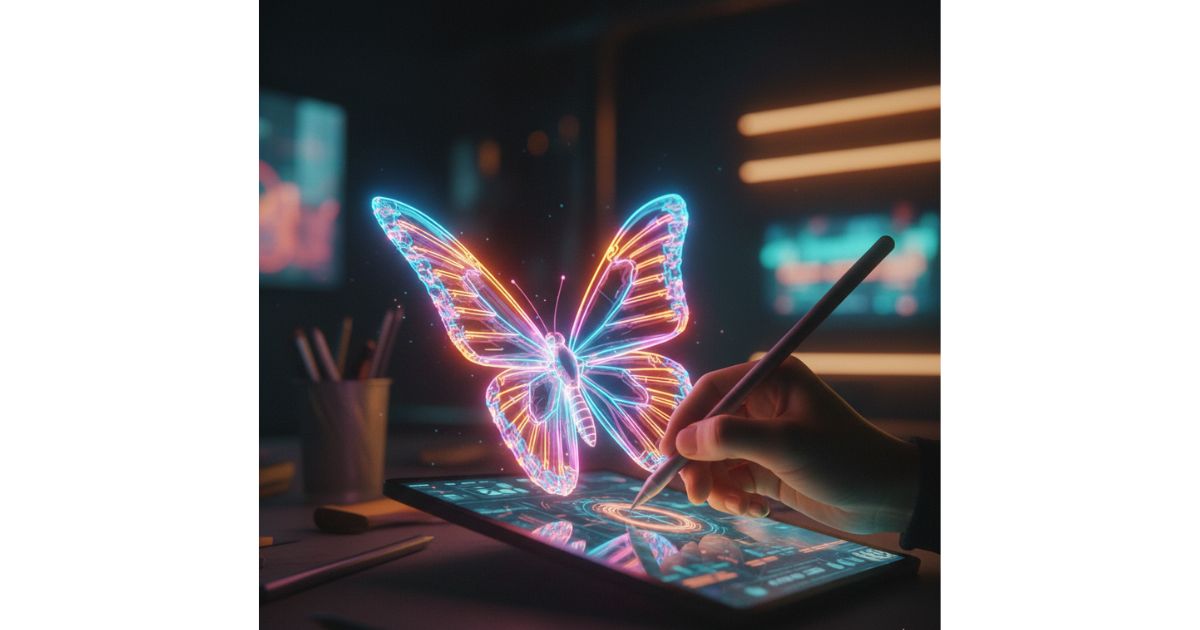
Prompt: A close-up of a human hand using a glowing digital stylus to sketch a 3D translucent butterfly. Retro-futuristic aesthetic, grainy film texture, vibrant neon accents in cobalt and amber, soft bokeh background of a modern creative studio, hyper-detailed, cinematic lighting.
3. The E-commerce Product Shot (Sales-Focused)
Goal: High-converting product visualization.
Prompt: A luxury perfume bottle sitting on a wet marble plinth, dramatic side lighting from a single source, realistic water droplets, dark moody background with golden hour reflections, 85mm lens aesthetic, ultra-sharp textures, commercial photography.

4. High engagement through emotional connection (trending in 2026).
Goal: High engagement through emotional connection (trending in 2026).
Prompt: Candid portrait of a creative designer laughing in a sun-drenched artisan coffee shop. Warm ambient lighting, steam rising from a ceramic mug, shallow depth of field with blurred greenery in the background, 35mm film grain, authentic lifestyle photography.

Conclusion: Your Creative Superpower
Adobe Firefly has made professional design accessible to everyone. By following this guide, you can save hours of work while producing content that looks like it was made by a high-end agency.
People Also Ask (FAQ)
Q1. Does Adobe Firefly cost money?
Ans: There is a free version with monthly credits. For high-volume users, paid plans start around ₹797.68/month (incl. GST), offering more speed and higher resolution.
Q2. How does Firefly work?
Ans: It uses a machine learning model trained on Adobe Stock and public domain content. This makes it “commercially safe,” meaning you won’t get sued for using these images in your business.
Q3. Can I edit my own photos?
Ans: Yes! Use the Generative Fill module. Upload your photo, brush over an area (like a background or a piece of clothing), and type what you want to change.
Q4. What is “Structure Reference”?
Ans: This 2026 feature allows you to use the layout of one image as a template for a new one. It’s perfect for keeping the same “pose” while changing the character or setting.