
 By
By The world of digital art is undergoing a revolution, and at the forefront is Midjourney, a powerful AI tool that transforms text descriptions into stunning, unique images. Whether you’re a seasoned artist looking for new inspiration or a complete beginner curious about AI’s creative potential, learning how to effectively wield Midjourney can unlock a universe of visual possibilities.
As your guide with 15 years of experience in navigating the digital landscape and crafting compelling content, I’m here to walk you through the process, from your very first steps to generating impressive and persuasive visuals.
Ready to turn your ideas into art? Let’s dive in.
What is Midjourney and How Does it Work?
Midjourney is an independent research lab that has developed an artificial intelligence program which creates images from text descriptions, often referred to as “prompts.” Currently, Midjourney is primarily accessed through Discord, a popular communication platform. You interact with the Midjourney Bot by typing commands, and it generates images based on your input.
The magic lies in the AI’s ability to interpret your words and translate them into visual elements, styles, and compositions. The more descriptive and nuanced your prompts, the more likely you are to achieve the specific vision you have in mind.
Getting Started: Your First Steps with Midjourney
To begin your Midjourney adventure, you’ll need a Discord account. If you don’t have one, head over to the Discord website and sign up – it’s free and easy.
Step 1: Join the Midjourney Discord Server
The primary way to use Midjourney is by joining their official Discord server. You can typically find an invite link on the Midjourney website (midjourney.com). Once you accept the invitation, you’ll land in the Midjourney Discord server.
Step 2: Navigate to a “Newbies” Channel
In the Midjourney Discord server, look for channels labeled “newbies,” “newcomer rooms,” or similar. These are dedicated spaces for beginners to learn and experiment. In these channels, you’ll see other users generating images, which can be a great source of inspiration.
Illustration Idea: Screenshot of the Discord interface highlighting the “newbies” channels.
Step 3: Subscribe to a Midjourney Plan
While there used to be a free trial, Midjourney now requires a paid subscription to generate images. In the Discord server, you can type /subscribe to get a personalized link to the subscription page on the Midjourney website. Choose the plan that best suits your needs.
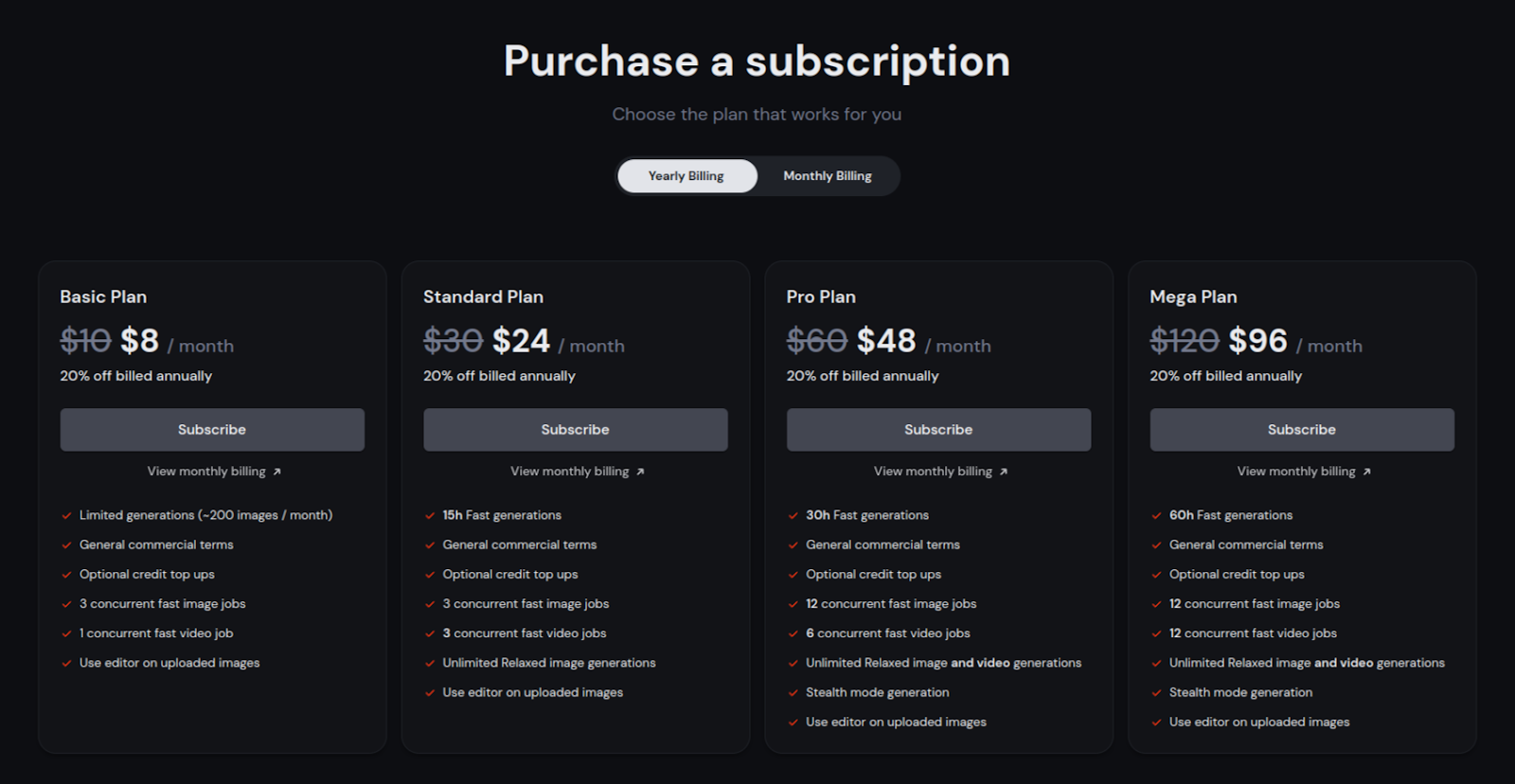
Midjourney plan comparison
Step 4: Your First Image Generation with /imagine
This is where the fun begins! In one of the newbie channels (or a private server where you’ve added the Midjourney Bot), you’ll use the primary command for image generation: /imagine.
Type /imagine prompt: followed by your text description of the image you want to create.
Example Prompt: /imagine prompt: a mystical forest at sunset, digital art
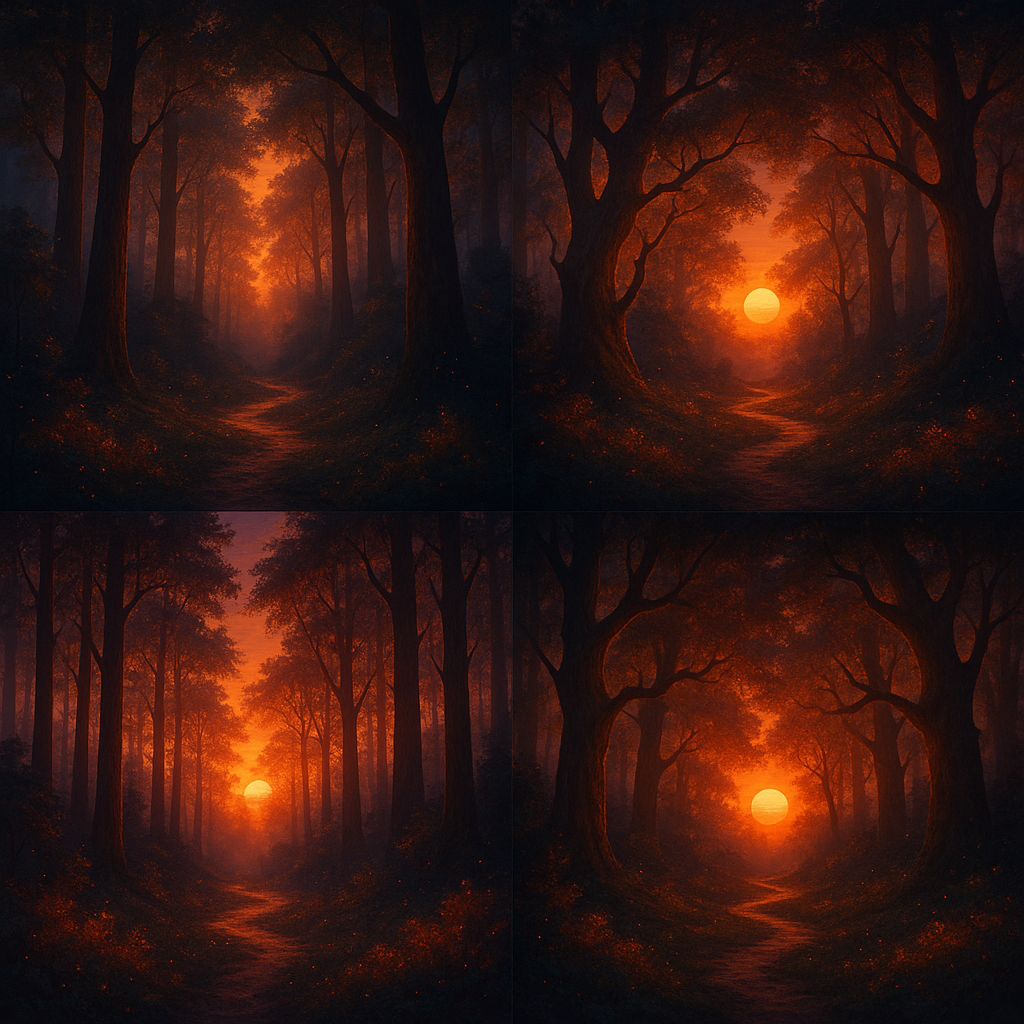
Once you enter your prompt, the Midjourney Bot will start working and, within a minute or so, will present you with a grid of four low-resolution image options based on your description.
Illustration Idea: A sequence showing typing /imagine prompt: … and then a generated grid of four diverse images.
Understanding the Output: Upscaling and Variations
After Midjourney presents the four images, you’ll see rows of buttons below the grid:
- U Buttons (U1, U2, U3, U4): These buttons are for “upscaling” the selected image (corresponding to its position in the grid – U1 for the top-left, U2 for the top-right, and so on). Upscaling generates a larger, more detailed version of that specific image.
- V Buttons (V1, V2, V3, V4): These buttons create “variations” of the selected image. This is useful if you like a particular image but want to see slightly different interpretations or explore alternative directions based on its composition and style.
- 🔄 (Reroll): This button reruns the original prompt, generating a new grid of four images. This is helpful if none of the initial results are quite what you were looking for.
Illustration Idea: An image of the Midjourney output grid with the U and V buttons clearly labeled.
When you click a U button, Midjourney will provide a higher-resolution version of that image. When you click a V button, it will generate a new grid of four variations based on the chosen image.
Crafting Effective Prompts: The Art of Communication
Think of writing a Midjourney prompt as collaborating with a highly imaginative artist. The more clearly and creatively you communicate your vision, the better the result will be. Here are some tips for writing effective prompts:
- Be Descriptive: Use adjectives and nouns to paint a vivid picture. Instead of “a dog,” try “a fluffy golden retriever puppy playing in a field of daisies.”
- Specify the Medium and Style: Do you want a photograph, a painting, an illustration, or something else? Mentioning the style can significantly influence the output. Examples: “oil painting,” “watercolor,” “cyberpunk art,” “photorealistic.”
- Consider Lighting and Atmosphere: Words like “golden hour,” “moonlit,” “foggy,” “vibrant,” or “eerie” can add significant mood to your image.
- Include Artists or Art Movements (with caution): You can reference specific artists or art movements to influence the style, but be mindful of ethical considerations and Midjourney’s community guidelines regarding copyrighted styles.
- Use Parameters: Midjourney offers various parameters you can add to your prompt to control aspects like aspect ratio (–ar), style (–s), and more. Explore the Midjourney documentation for a full list of parameters. Parameters are added at the end of your prompt, separated by spaces.
Example of a more detailed prompt: /imagine prompt: a majestic dragon soaring through a stormy sky, digital painting, dramatic lighting, fantasy artstation –ar 16:9
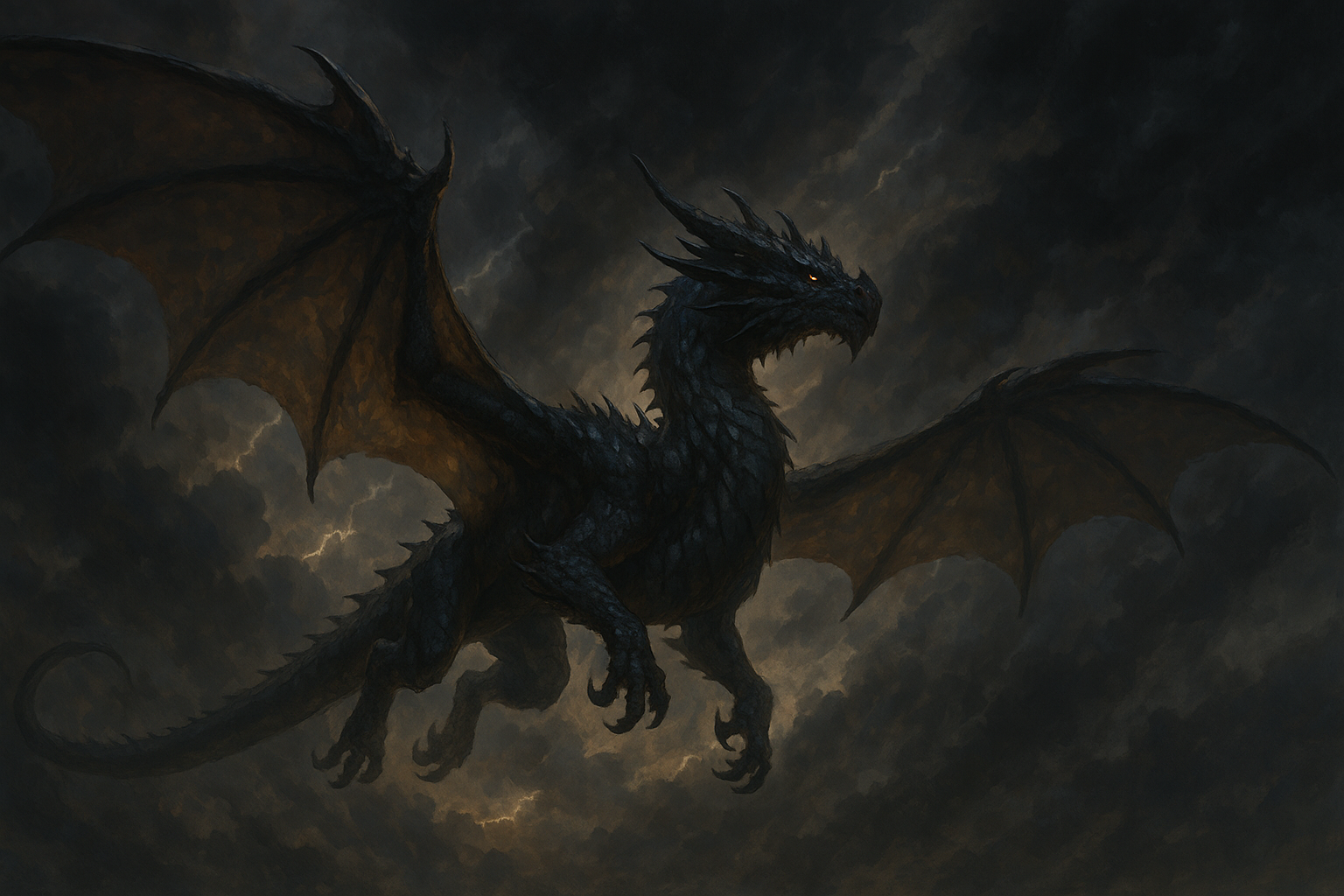
Illustration Idea: Showcase a few different prompts and verbally describe the expected visual outcome for each, emphasizing how prompt details change the result.
Exploring Different Styles with Examples
Midjourney excels at generating images in a vast array of styles. By adjusting your prompt, you can steer the AI towards the aesthetic you desire.
Photorealistic: To aim for realism, use terms like “photorealistic,” “ultra-detailed,” “8k photograph,” and mention camera-specific terms if you’re familiar with them (e.g., “shot on a Canon EOS R6”).
Example Prompt: /imagine prompt: a close-up portrait of an old man with character lines, photorealistic, dramatic studio lighting
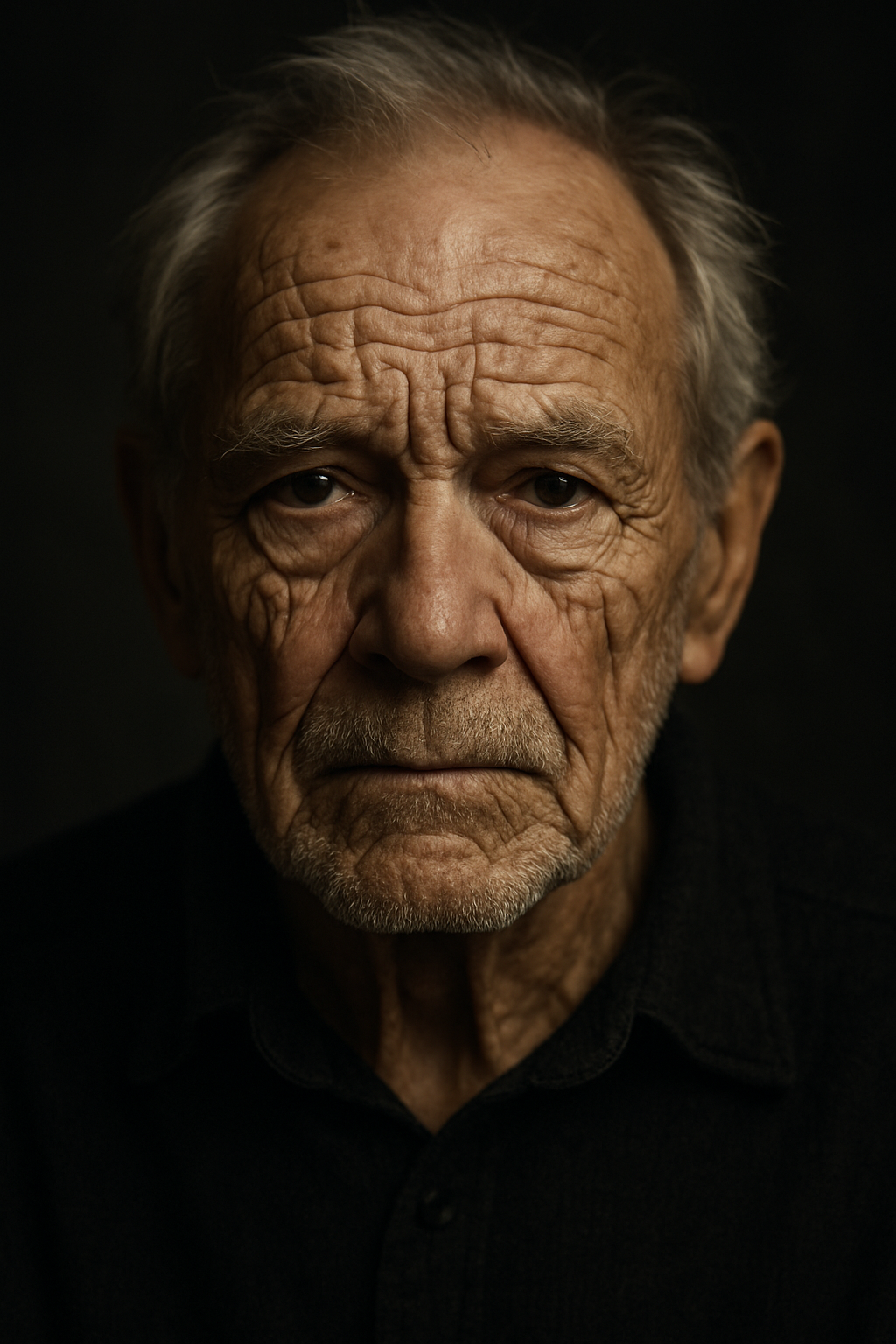
Describe a photorealistic portrait.
Illustrative/Artistic: For more artistic styles, specify the medium and movement.
Example Prompt: /imagine prompt: a whimsical treehouse in a forest, watercolor illustration, vibrant colors
Describe a whimsical watercolor illustration.
Sci-Fi/Fantasy: These genres often benefit from descriptive world-building in the prompt.
Example Prompt: /imagine prompt: a futuristic cityscape with flying cars and neon lights, cyberpunk style, deep purple and blue tones
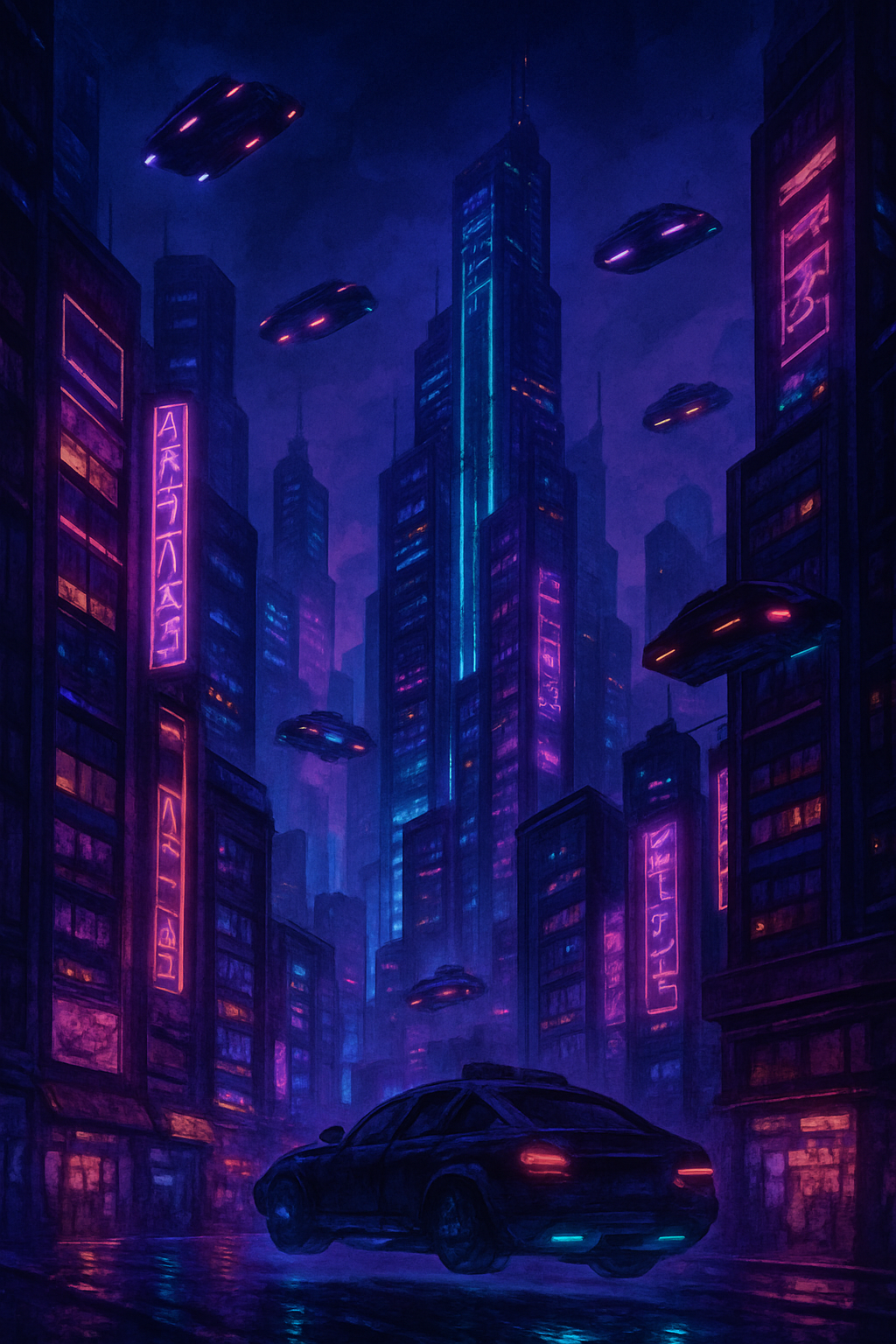
Describe a futuristic cyberpunk cityscape.
Abstract: Experiment with concepts and less literal descriptions for abstract results.
Example Prompt: /imagine prompt: the feeling of nostalgia, abstract art, soft gradients and blurred edges
Describe an abstract image conveying nostalgia.
Remember, the key is experimentation! Try different combinations of words, styles, and parameters to see what Midjourney creates.
Beyond the Basics: Tips for Better Results
- Iterate and Refine: Your first attempt might not be perfect. Use the V buttons to create variations or adjust your prompt based on the initial results.
- Use Image Prompts: You can include an image URL at the beginning of your prompt to influence the composition or style based on an existing image.
- Explore the Midjourney Website Gallery: The Midjourney website has a gallery showcasing images created by other users. This is an excellent place to find inspiration and see how different prompts translate into visuals.
- Learn About Parameters: Understanding parameters like –chaos (controls the randomness of the results) or –stylize (influences how artistic the image is) can give you more control.
- Join the Community: The Midjourney Discord server is a vibrant community. Observe how others write prompts, ask questions, and share your own creations.
Conclusion: Your Creative Companion
Midjourney is more than just a tool; it’s a creative companion that can help you visualize your ideas in ways you never thought possible. By understanding the basics of prompting and exploring its capabilities, you can generate unique images for personal projects, creative endeavors, or even professional use (depending on your subscription plan).
Embark on your Midjourney journey today and see where your imagination takes you. The possibilities are truly limitless!
FAQs
Q1. 1. Do I need to be an artist to use Midjourney?
Ans: Absolutely not! Midjourney is designed for everyone, regardless of artistic skill. Your ability to describe your vision in words is the primary requirement.
Q2. 2. How much does Midjourney cost?
Ans: Midjourney offers different subscription tiers with varying levels of access and features. You can find the details on their website after typing /subscribe in Discord.
Q3. Can I use the images I create with Midjourney commercially?
Ans: The commercial use of your generated images depends on your subscription plan. Check the terms of service for your specific plan for details.
Q4. Why isn’t Midjourney generating what I imagined?
Ans: Prompting is an art! If your results aren’t what you expected, try refining your prompt with more specific details, different keywords, or by adjusting parameters. Experimentation is key.
Q5. What are parameters and how do I use them?
Ans: Parameters are options you add to the end of your prompt (e.g., –ar 16:9) to control various aspects of the image generation process, such as aspect ratio, style, and randomness. You can find a comprehensive list in the Midjourney documentation.